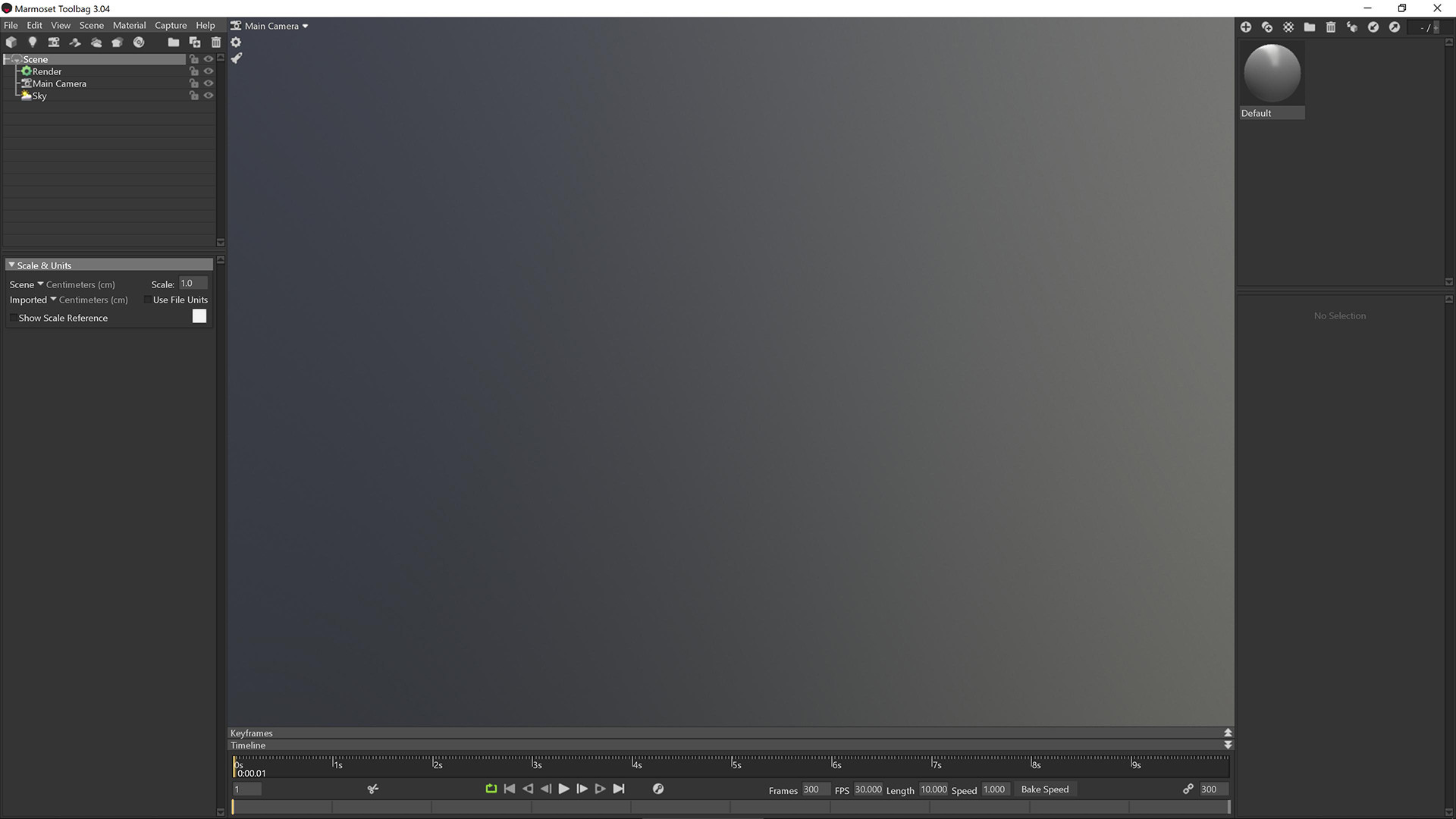
1. Open marmoset toolbag

2. First, select render option, and enable lighting, global illumination and ambient occlusion effects.
For now is no reason to change voxel resolution and occlusion detail.

3. Next step- main camera options. Change field of view as you like, enable sharpen and grain effects.
Grain will help you get rid of banding gradients on background.Also check capture setting. Set sampling, resolution and file format what you need.

4. Import your mesh.
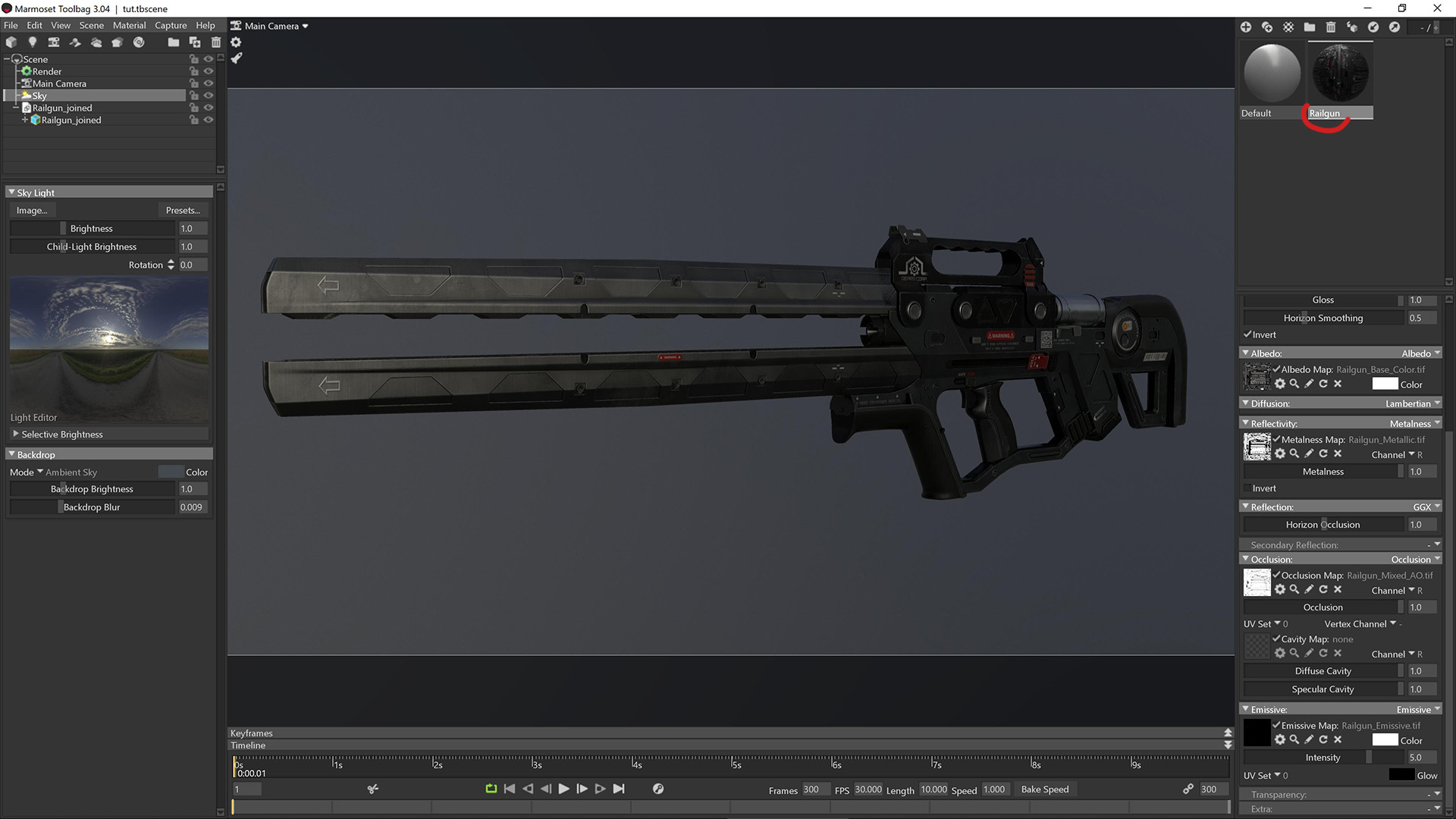
5. Assign texture maps. Remember invert roughness channel, and uncheck srgb in metallic map. Also you can
turn off mipmaps, for make your texture more detailed.
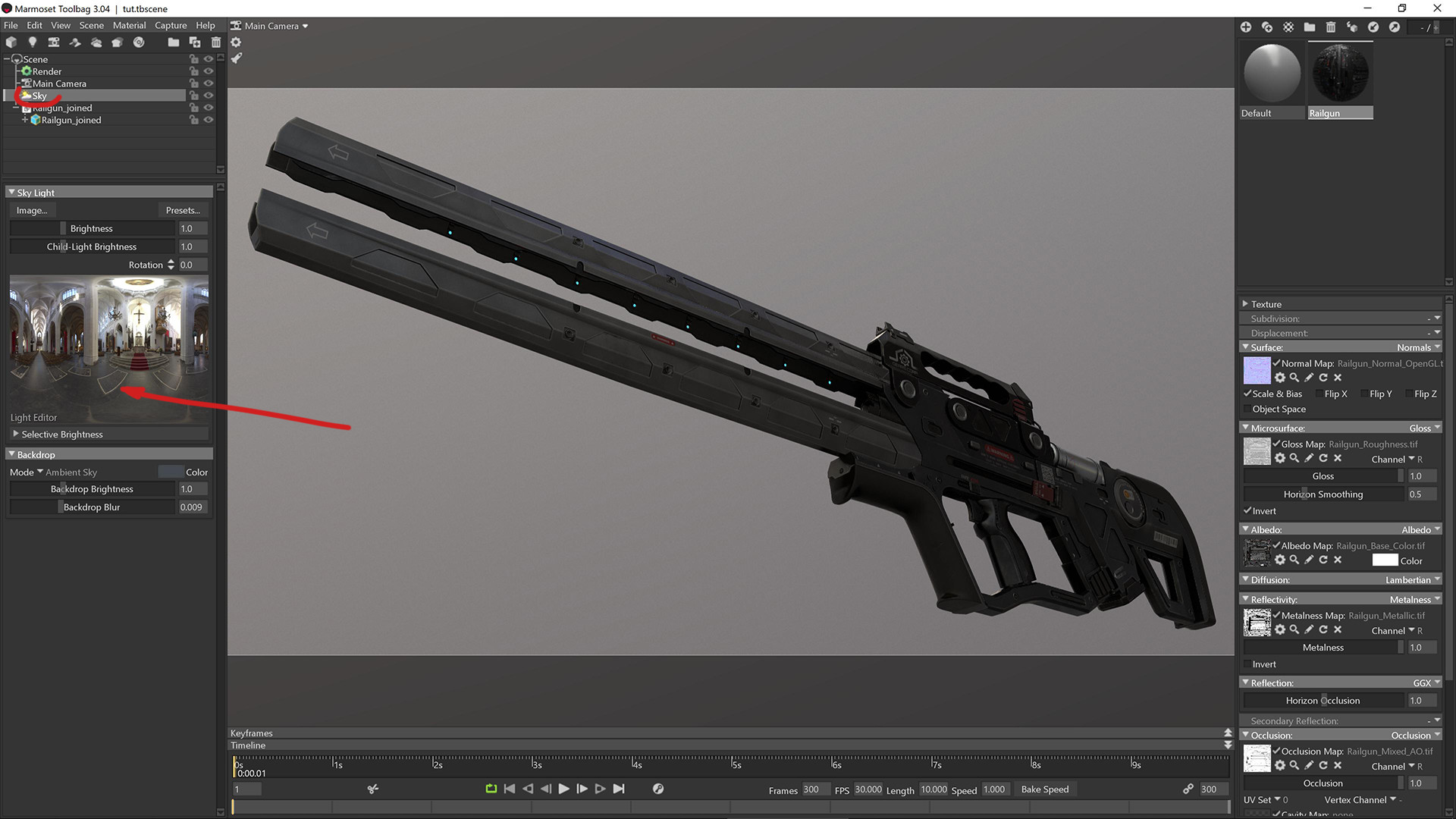
6. Change the viewing angle and choose and set HDRI. Mostly i use HDRI`s from Joost Vanhoutte https://gumroad.com/joost. They are cool and
free:) That specific HDRI called cathedral02.

7. Turn HDRI by holding SHIFT and left mouse button. Also you can make background darker or lighter and change it mode.

8. Start to add lights. You can click on HDRI screen and/or make new light from upper menu. Personally i started with edge lights to show
contours of asset.
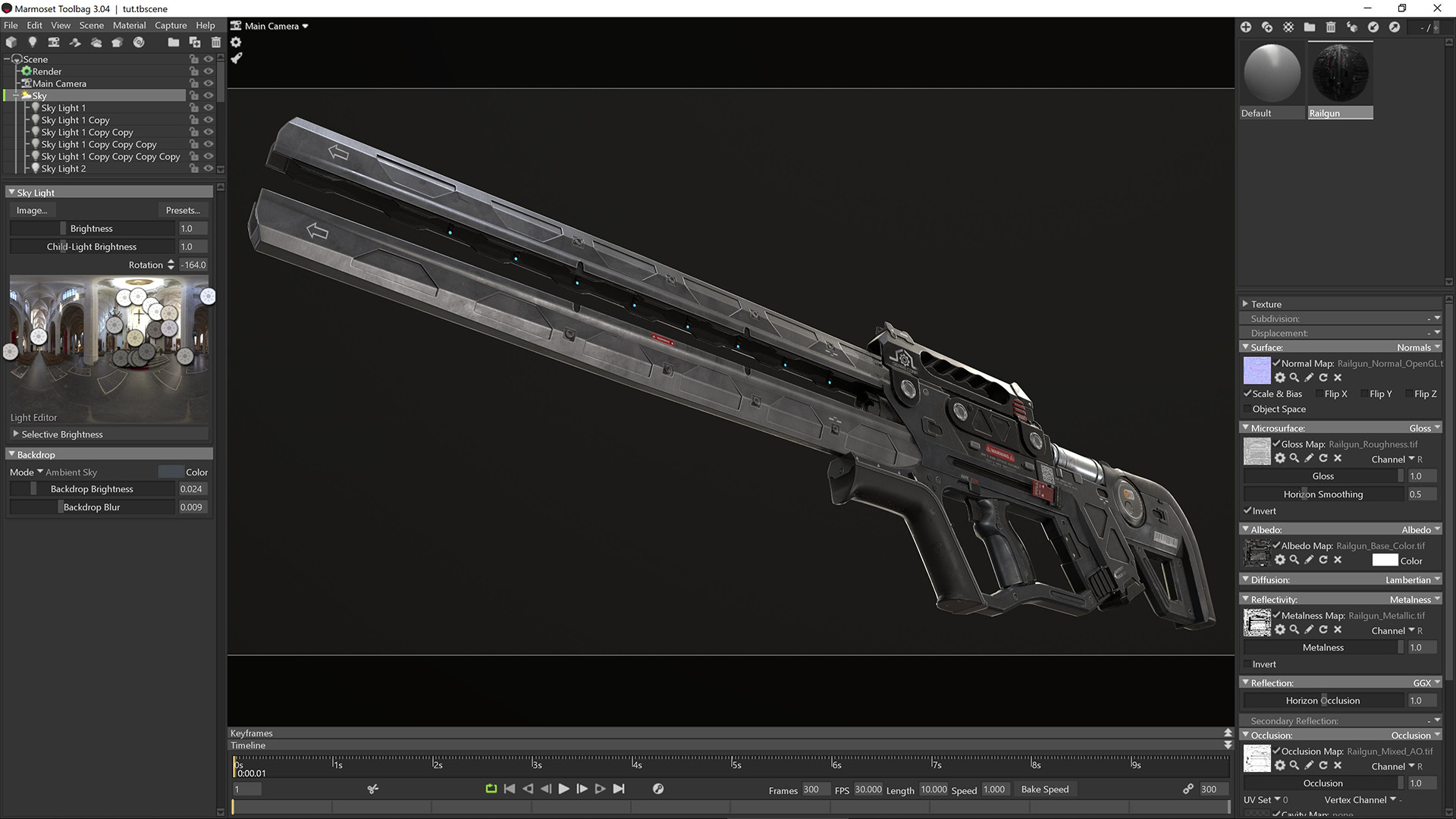
9. Then add lights that shows base asset shape and roughness map details.Imagine that you paint by light.

10. At the end i add big and bright base lights.

11. In main camera option, redact curves.

12. Add chromatic aberration and vignette effects.

13. Enable bloom(if necessary) and depth of field.You can change focus distance by clicking on main screen by middle mouse button.

14. Now you can change shadow resolution as well as voxel resolution.
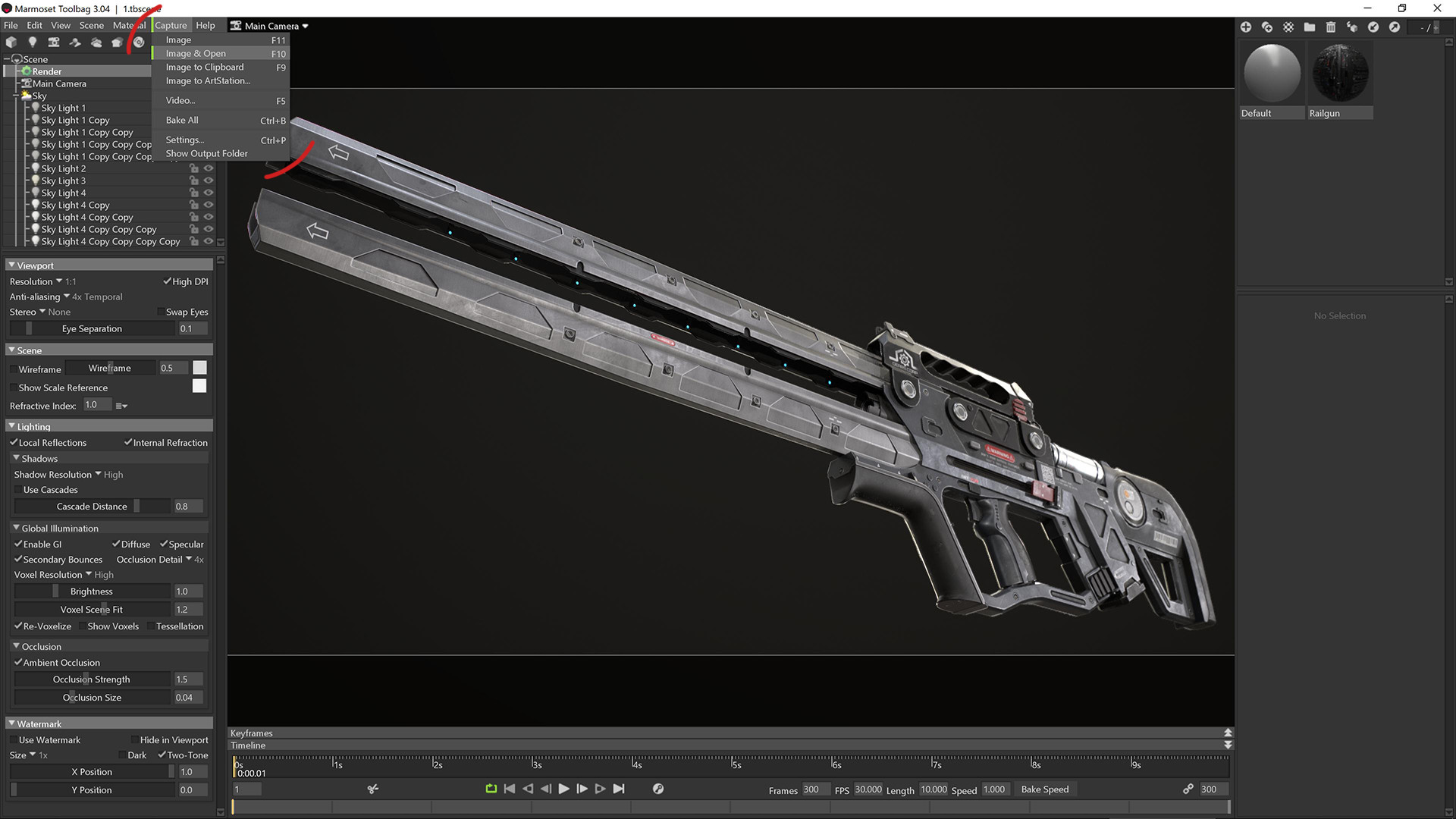
15. Capture an image.
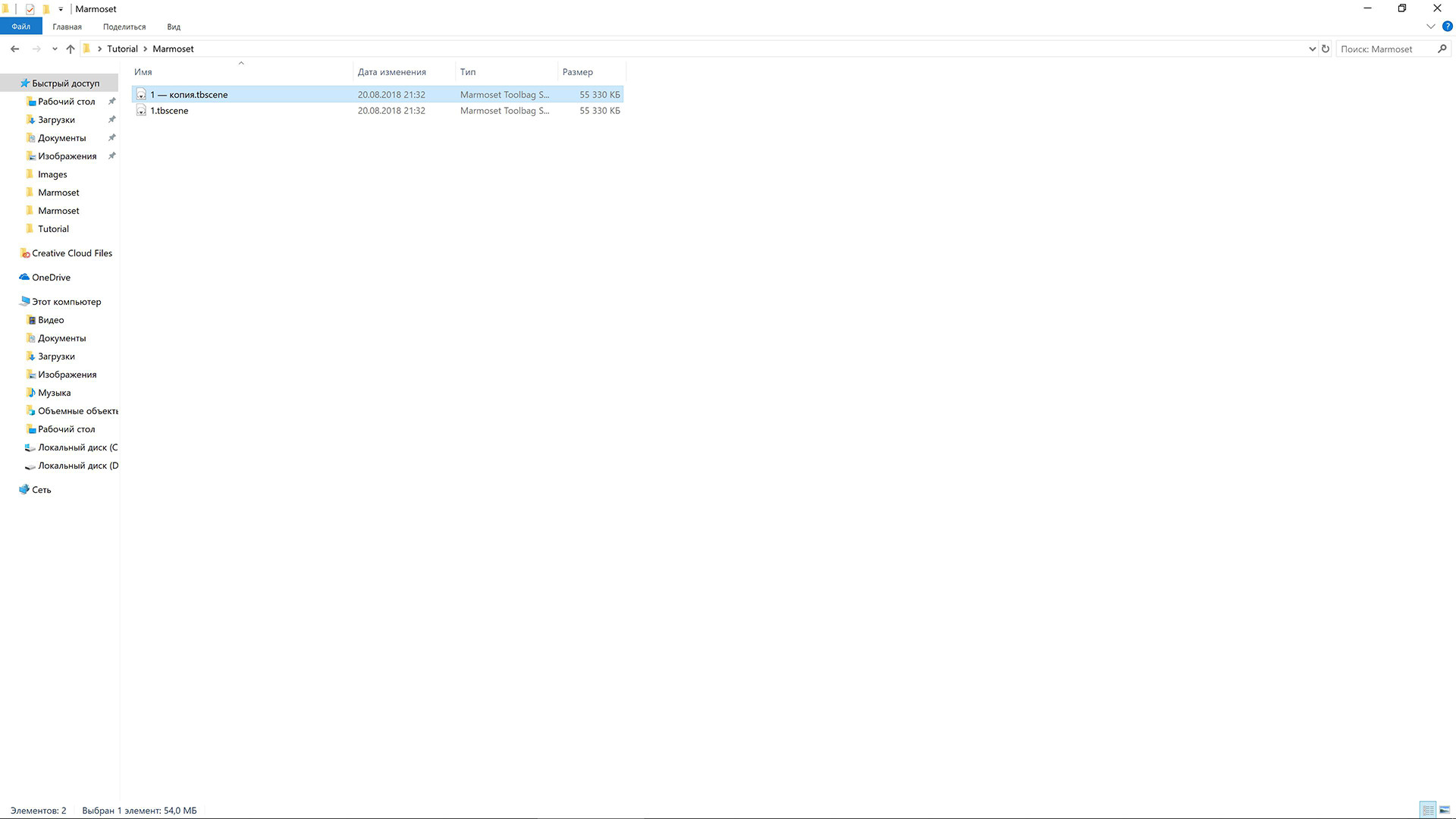
16. Make copy of your marmoset toolbag project.
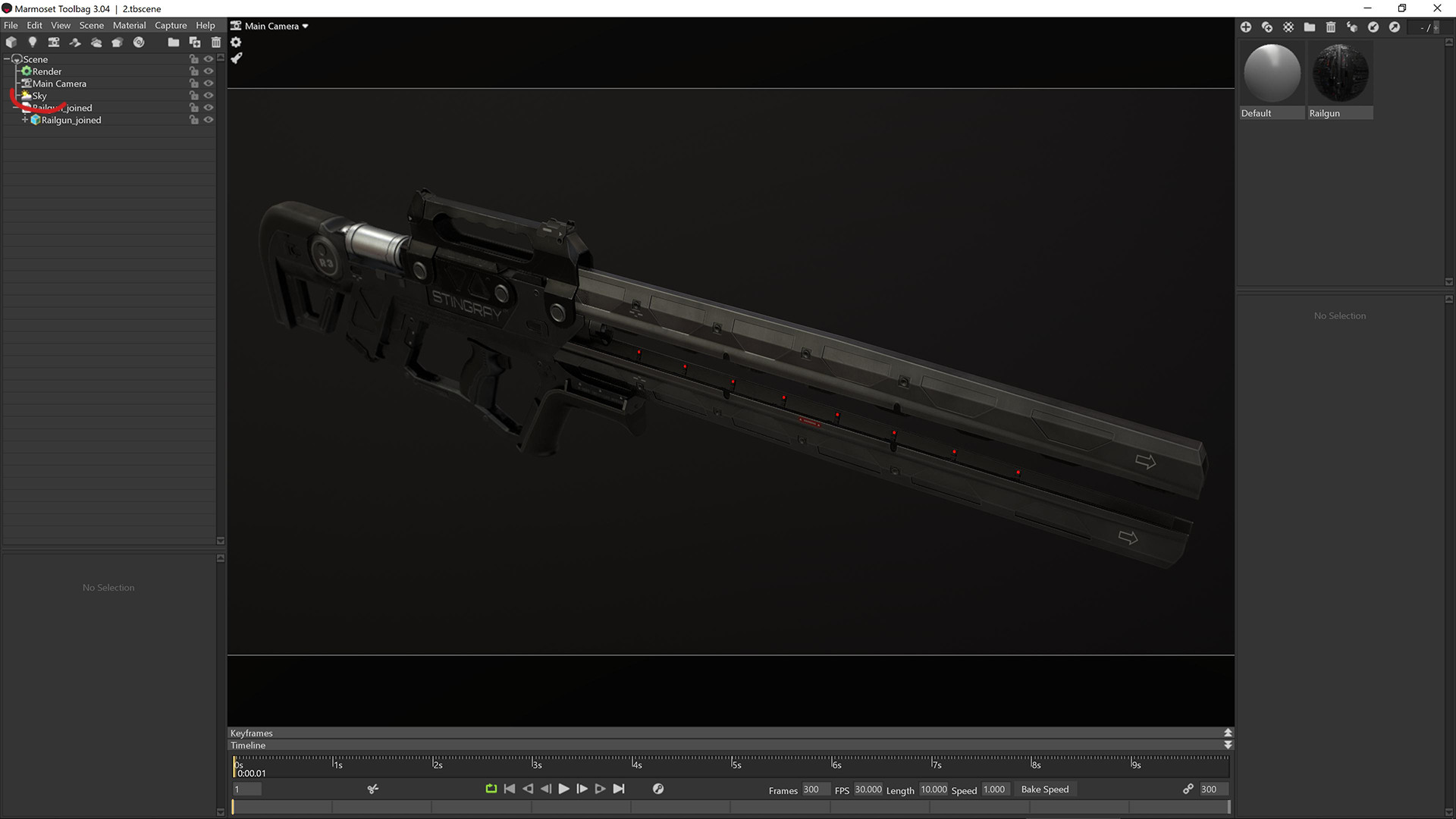
17. Open it. Change viewing angle and rotate HDRI as you want. Delete all lights or redact old ones.
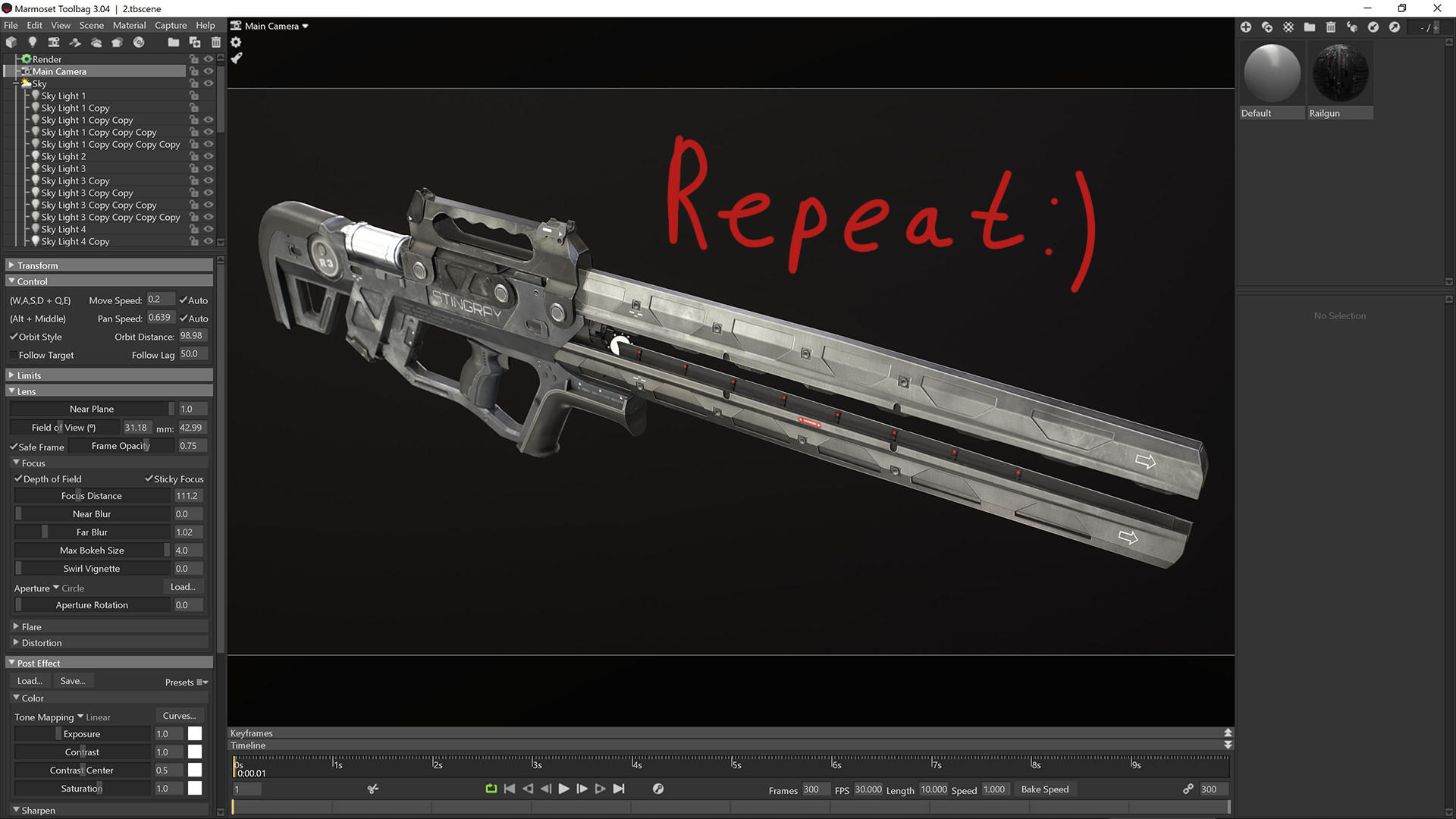
18. Make new light set. That for each further shot.
That's all:) Thank you!


